
Dashboard
The Dashboard hosts the principal view: Studies (1.).
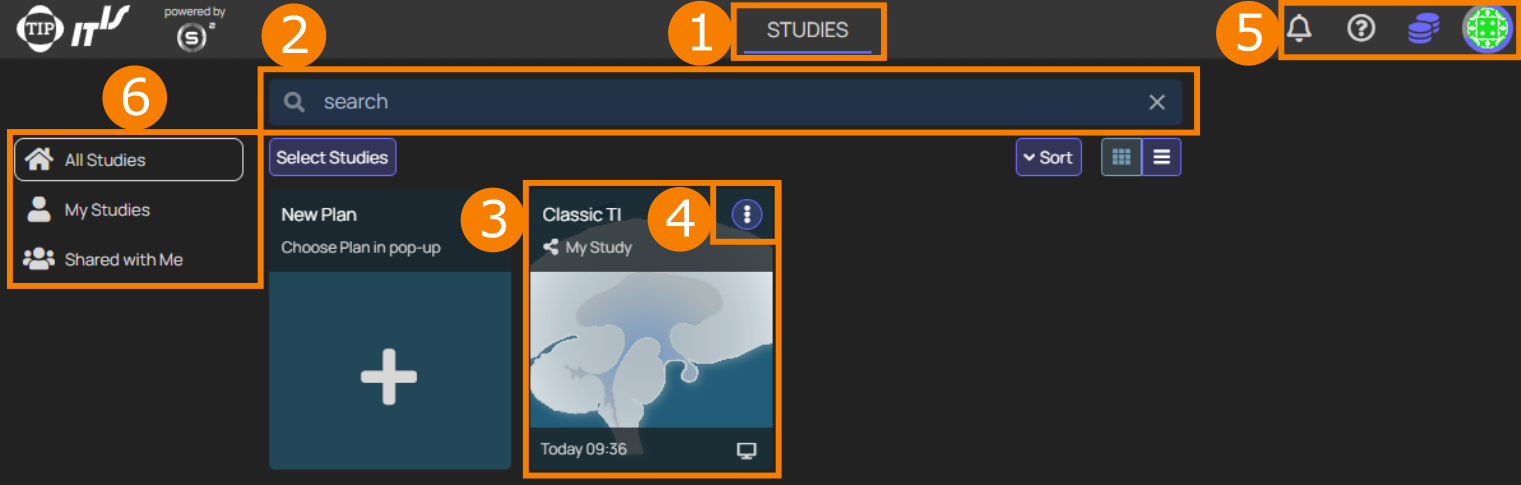
Under Studies, existing Plans (own Plans, or plans that have been shared by other users (6.)) can be accessed (3.) and managed (4.), and new Plans can be created.
In addition, buttons on the top right (5.) provide access to notifications, Guided Tours, Quick Start, contact options, and a menu with the following entries:
- My Account: Information about user, option to change password or delete account. Usage overview is also accessible.
- Billing Center: Access to Credit Accounts, Payment Methods, Transactions and Usage.
- Preferences: Access to General Settings, Confirmation Settings and Create/Edit Tags.
- Organizations group of users who can share studies. (see the o2S2PARC User Manual for detailed information)
- Light/Dark Theme: Switch between light or dark mode according to your preference.
- About oSPARC: List of Front-end and Back-end technologies employed by the TI Planning Tool
- License: Information about the TI Planning Tool license, as well as the licenses of the underlying technologies.
- Log out: Logging out from the TI Planning Tool
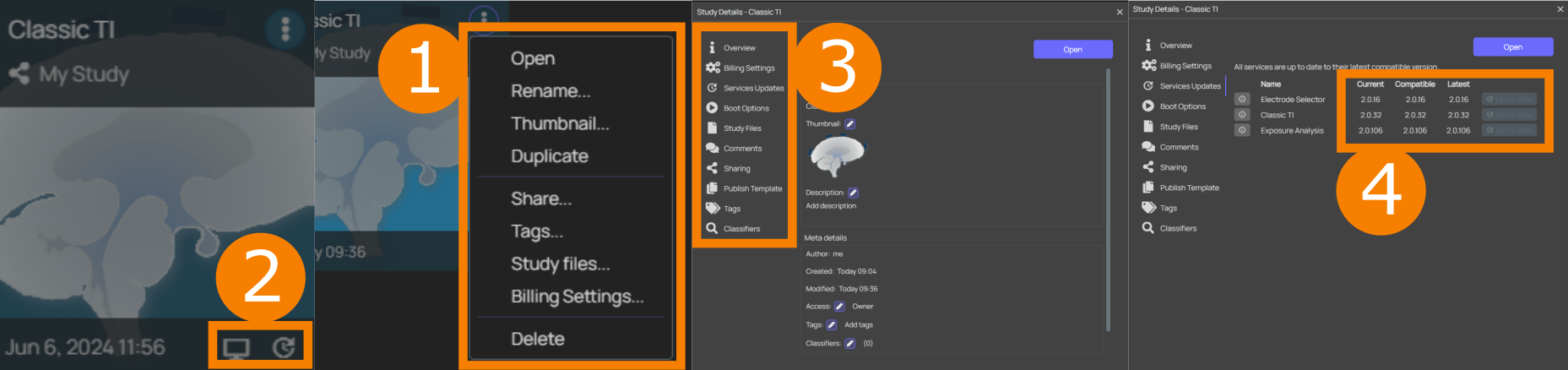
The user can access more functionality such as Overview, Study Files, Sharing, and Services Updates (3.) by clicking on the study card in the Dashboard. Through the three-dot menu (1.) icon, quick access to some operations is provided. (see the o2S2PARC User Manual for more information on these functionalities as well as the locking states). If Services within a Plan need updating, the small circular arrow sign will appear in the bottom right corner (2.) of the Plan on the Dashboard. Clicking this icon will bring you directly to the update menu where you see the current and newest available versions of each Service and where you can update them either individually or all together (4.).
It is always possible to return to the Dashboard by clicking the Dashboard button on the top left, which automatically saves the state of the currently opened plan.
For more information, see the o2S2PARC User Manual.