Exposure Analysis
Summary:
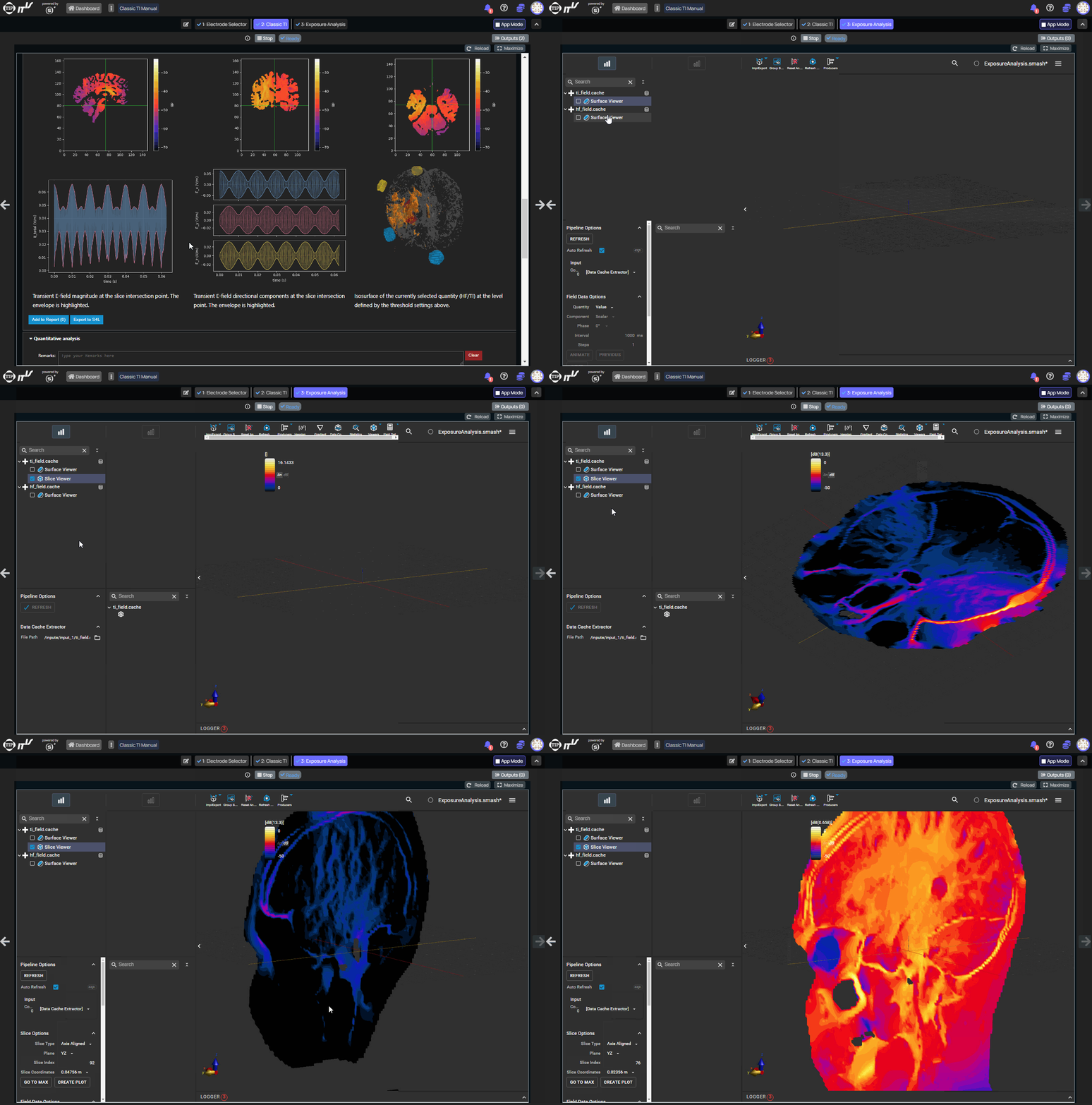
The Exposure Analysis step provides a complete Sim4Life (ZMT Zurich MedTech AG) workbench — including Modeling, Simulation, and Analysis sections. Users can load TI and HF field distributions exported from TI Analysis, reconstruct and adjust electrode montages, run new electromagnetic simulations, and perform in-depth visualization and dosimetry analysis. Ready-to-use template projects are provided for all precomputed anatomical models.
Sim4Life Documentation & Tutorials
Note: Since Exposure Analysis provides a full Sim4Life workbench, the complete Sim4Life documentation, training materials, and video tutorials apply directly and are a valuable resource for getting the most out of this step.
| Resource | Description |
|---|---|
| Sim4Life Support & Documentation | Official page with user manuals, product flyers, training materials, and support resources |
| How-To Video Playlist | Full collection of how-to and tutorial videos on the ZMT Zurich MedTech AG YouTube channel |
Overview
Starting with TIP V5.0, the Exposure Analysis step exposes a full Sim4Life workbench with all three sections available:
- Modeling: Full geometric and meshing capabilities. The electrode montage identified during TI Analysis optimization can be reconstructed and adjusted on the subject model.
- Simulation: Configure and run new simulations — either to investigate a specific electrode configuration in detail, or to recreate the full lead-field library from scratch.
- Analysis: All visualization and post-processing tools — volume rendering, slicing, iso-surfaces, streamlines, masking, histograms, and more.
Available Input Files
The files pre-loaded in Exposure Analysis depend on the pipeline path:
| Input | Contents |
|---|---|
input_1/ | TI and HF field .cache files exported from TI Analysis via Export to S4L |
input_2/ | Subject .smash model file (personalized: from the Personalizer; precomputed: from the template library) |
input_3/ | DTI tensor data, if available (anisotropic models only) |
The subject model forwarded to Exposure Analysis is determined by the previous step: once a subject is selected in the TI Analysis dropdown and Load is clicked, the corresponding .smash file (and DTI tensors, where available) are automatically forwarded.
Typical Workflow
- Run the SuMo optimizer in TI Analysis to identify the best electrode configurations.
- Select a configuration of interest and click
Export to S4Lto generate the.cachefield file. - Proceed to Exposure Analysis.
- In the Analysis section, load the
.cachefile to inspect the field distribution. - Switch to the Modeling section — the subject's
.smashmodel is already available ininput_2/. Set up or adapt the electrode montage for the chosen configuration. - Switch to the Simulation section to run a targeted simulation for that montage.
- Return to the Analysis section for a detailed investigation of the simulated fields.
Template Projects for Precomputed Models
For every precomputed (non-personalized) anatomical model available in TIP, a ready-to-use Sim4Life template project is provided. Each template includes:
- The full anatomical model with all tissue entities defined and labeled.
- All standard targets (brain structures) pre-configured.
- All standard electrode positions pre-placed on the scalp surface.
- A pre-configured template multiport simulation that can be used to:
- Recreate the full lead-field library by running all 61 basis simulations as-is.
- Investigate a specific configuration by adapting the montage identified during TI Analysis optimization.
Available precomputed models with template projects:
| Model | Variants |
|---|---|
| MIDA (human) | Isotropic, Anisotropic |
| IXI Female | Anisotropic |
| IXI Male | Anisotropic |
| Mouse | Isotropic |