
Simulator
Summary:
In this step, users generate the field library by selecting isotropic or anisotropic white matter conductivity simulations. Once completed, users can export the results and either start a new simulation run or proceed to TI Analysis.
In this step, the generation of the field library, as described in the chapter Electromagnetic Modeling, is computed. Given that DTI data was provided, the user can use the drop-down to select which type of simulation they would like to run first, isotropic or anisotropic. Afterwards the computation can be initialized by hitting the Setup button. A pop-up will appear with the information about the estimated cost of this action which can be accepted using the Confirm button. Since TIP runs on AWS servers and creating the field library is a rather computationally intense step, this part is a premium feature which needs credits to be executed. For instructions on how to acquire credits, please refer to chapter Billing Center
Once all the preparations are finished, the logging console will show the information that the window can be closed. Since the simulations will run for approximately 2.5 to 3 hours, users can come back later once the results are available.
When all the simulations are done, users can hit the Export button which downloads all the results, and compiles all the necessary files which are needed for the following steps. Once this step is done, users can either start another simulation run in case both anisotropic and isotropic flavors should be compared.
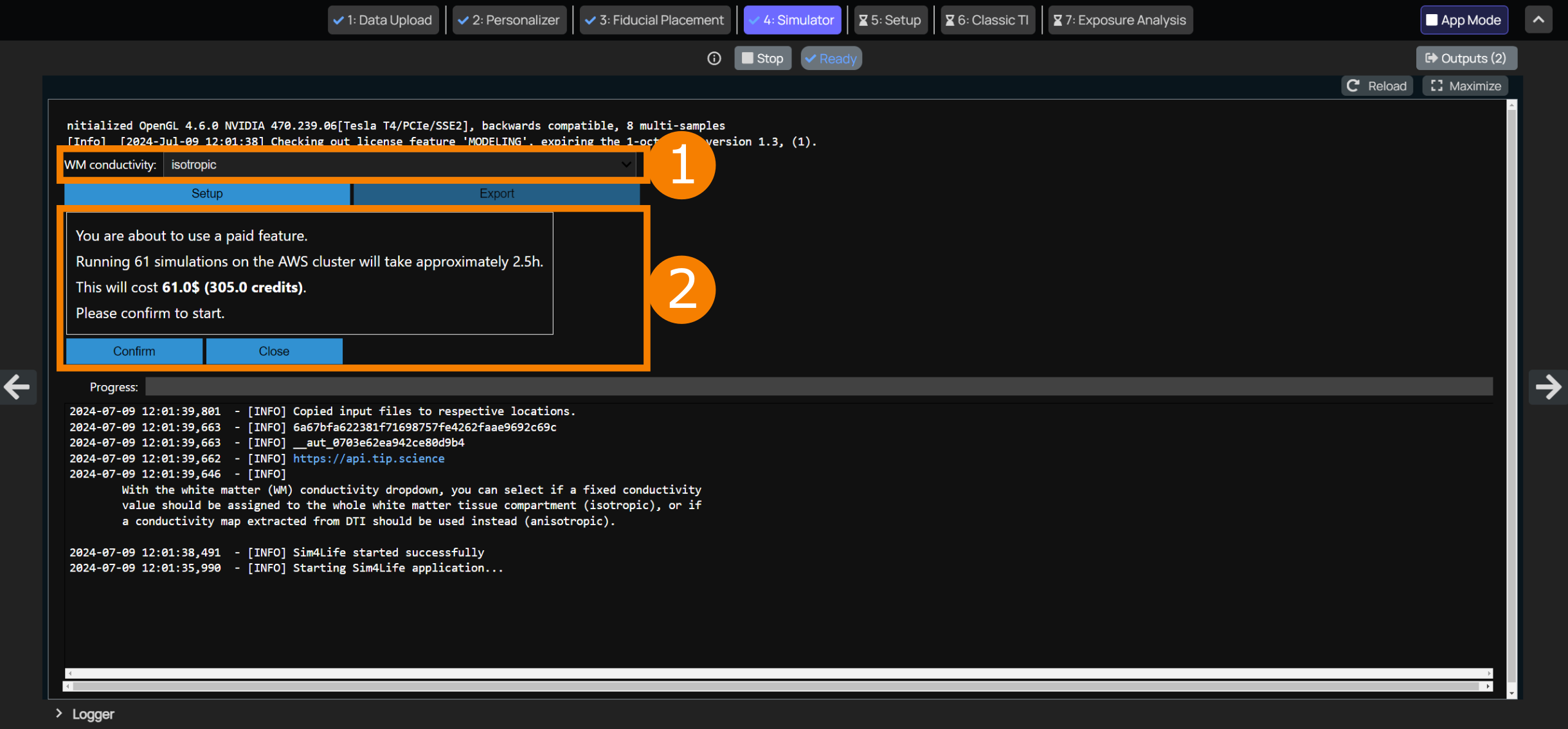
The Setup interface has the following elements:
White Matter Selectivity Selection
Simulation Type Selection
Simulation Cost Estimation
Before computation begins, a pop-up displays the estimated credit cost for this simulation run. Accept using the
Confirmbutton to proceed.
You can now click to the arrow on the right side of the browser to move to TI Analysis.